
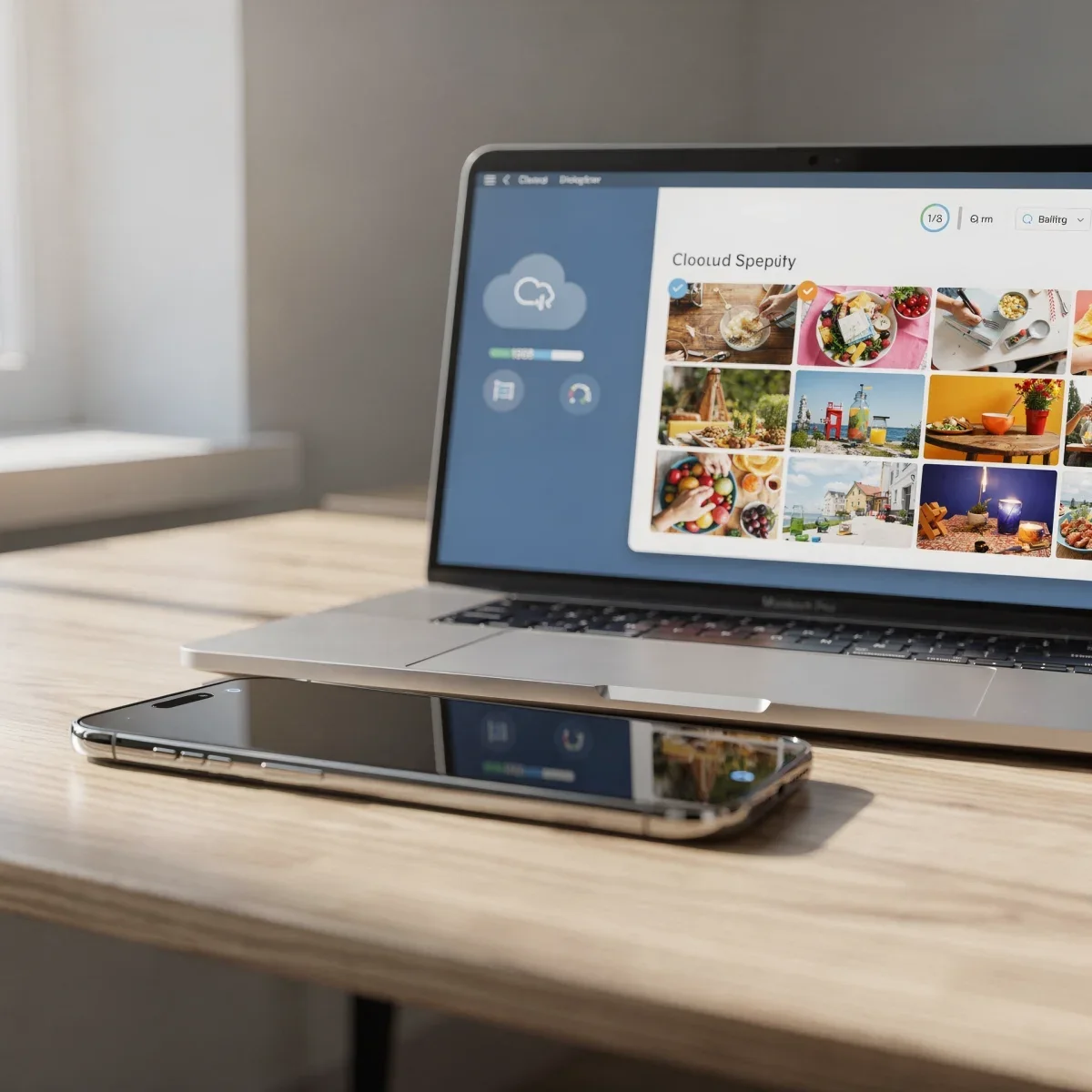
Losing years of family memories, vacation snapshots, and everyday moments because of a lost or water-damaged phone is a nightmare. Setting up an automatic photo backup system ensures your pictures stay safe without requiring you to manually plug your device into a computer every weekend. Here is everything you need to know to automate your photo storage seamlessly across all your devices.
Advertisements
The Best Cloud Platforms for Automatic Photo Sync
Cloud services provide the easiest way to keep your camera roll synced in real time. Once enabled, these apps quietly upload new pictures in the background whenever you connect to Wi-Fi.
| Platform | Free Tier | Starting Paid Plan | Best For |
|---|---|---|---|
| Apple iCloud Photos | 5 GB | $0.99/mo (50 GB) | iPhone, iPad, and Mac users |
| Google Photos | 15 GB (shared) | $1.99/mo (100 GB) | Android users and cross-platform search |
| Amazon Photos | 5 GB (non-Prime) | Unlimited full-res with Prime ($14.99/mo) | Current Amazon Prime subscribers |
| Microsoft OneDrive | 5 GB | $1.99/mo (100 GB) | Windows PC and Microsoft 365 users |
Step-by-Step: Enabling Auto-Backup on Your Smartphone
Configuring automatic sync takes less than two minutes. Follow these simple steps depending on your device and preferred platform.
For iPhone Users (Apple iCloud)
Apple makes syncing effortless within iOS. Open your Settings app, tap your name at the top, select iCloud, tap Photos, and toggle on Sync this iPhone. Choose Optimize iPhone Storage if your phone is running low on local space, or Download and Keep Originals if you have plenty of storage.
For Android and Multi-Platform Users (Google Photos)
Download the Google Photos app from Google Play or the App Store. Open the app, tap your profile icon in the top right corner, select Photos settings, tap Backup, and toggle it on. You can choose between uploading at "Original Quality" (full resolution) or "Storage Saver" (slight compression to save cloud space).
Bonus for Prime Members: Amazon Photos
If you already pay for an Amazon Prime subscription, you get free, unlimited full-resolution photo storage. Download the Amazon Photos app, sign in with your Prime credentials, and turn on auto-save in the app settings.
Protecting Your Library with the 3-2-1 Rule
Relying on a single cloud provider is a great first step, but serious data protection follows the classic 3-2-1 backup strategy:
- 3 copies of your data: Keep your original pictures on your phone plus two separate backups.
- 2 different media types: Use one cloud platform and one physical hard drive (such as an external SSD or a network-attached storage drive from Best Buy).
- 1 off-site copy: Cloud storage naturally serves as your off-site copy in case of home emergencies like fire or theft.
Smart Settings to Avoid Data Overage and Battery Drain
Automatic background syncing can consume mobile data and battery life if you leave default settings unchecked. Keep these quick tweaks in mind:
- Enable Wi-Fi Only: Ensure your backup app is configured to upload only over Wi-Fi so you do not burn through limited cellular plans.
- Include Video Carefully: 4K video files fill up cloud storage quickly. Review your storage limits before enabling video auto-sync on paid tiers.
- Keep Background App Refresh On: On iOS, background uploads pause if Background App Refresh is disabled in general settings.
Quick Takeaways
- Apple iCloud and Google Photos offer the most reliable background sync for mobile devices.
- Amazon Prime members can leverage free unlimited full-resolution photo storage via the Amazon Photos app.
- Pairing cloud sync with an occasional physical drive backup guarantees your photos are never lost.
Frequently Asked Questions
Does deleting a photo from my phone delete it from the cloud?
With Apple iCloud, yes—it syncs changes across devices. With Google Photos and Amazon Photos, you can safely remove local copies using their built-in "Free Up Space" tools without deleting the cloud version.
Will photo backup apps slow down my phone?
No. Most modern backup apps run quietly in the background, pausing automatically if your battery is low, your device overheats, or your connection is unstable.
How much cloud storage do I actually need?
Most casual photographers need between 100 GB and 200 GB for several years of photos. Heavy photographers shooting 4K videos should consider 1 TB or larger plans.
Next Steps
Taking ten minutes today to set up an automatic photo backup gives you lasting peace of mind. Choose the service that fits your ecosystem, turn on automatic syncing, and check out our guide to organizing your digital photo clutter next.