
Few things disrupt your day quite like walking into the bedroom, kitchen, or backyard patio only to watch your video stream freeze and your signal drop to a single bar. If you find yourself hunting for a signal in your own hallway, finding the right home Wi-Fi extender can save you hours of frustration without requiring a costly whole-home network overhaul. This guide walks you through the core technical specifications, physical form factors, and placement strategies you need to know before buying one at Best Buy, Target, or Amazon.
Advertisements
Understanding How a Home Wi-Fi Extender Works
Before spending money on new hardware, it helps to understand what a range extender actually does. A standard Wi-Fi range extender acts as a bridge between your primary internet router and the devices located in hard-to-reach areas of your house. It picks up the existing wireless broadcast from your main router, amplifies that signal, and rebroadcasts it into the surrounding space.
While this process effectively stretches your wireless perimeter, it comes with a fundamental trade-off. Standard single-band and dual-band extenders must communicate with both your device (like a phone or laptop) and your router simultaneously. Unless the unit features a dedicated backhaul channel, your available speed on the extended network may be cut by up to 50 percent. For basic web browsing, streaming 4K video, and sending emails, this speed reduction is rarely noticeable, but it is an important factor for competitive online gaming or heavy local file transfers.
Key Features to Look for When Shopping
Walking down the networking aisle or browsing online electronics retailers can feel overwhelming with all the technical jargon. Focusing on four essential specifications will help you pick the right model for your specific floor plan and bandwidth needs.
1. Matching Wi-Fi Standards (Wi-Fi 5, Wi-Fi 6, and Wi-Fi 7)
Always match your extender to the wireless standard of your existing router. If you bought a Wi-Fi 6 (802.11ax) router from your internet service provider or electronics retailer, pairing it with an older Wi-Fi 5 (802.11ac) booster will bottle-neck your devices. Conversely, buying an expensive Wi-Fi 7 model when your main router runs on Wi-Fi 5 will not magically speed up your base connection. Look at the label on your router base to verify its generation before purchasing.
2. Dual-Band vs. Tri-Band Frequency
Single-band extenders (2.4 GHz only) are outdated and should generally be avoided. At a minimum, choose a dual-band model that supports both 2.4 GHz (for broad coverage through walls) and 5 GHz (for faster speeds at shorter ranges). If you have dozens of smart home gadgets, security cameras, and multiple family members streaming at once, consider a tri-band extender. Tri-band units reserve an entire 5 GHz or 6 GHz frequency band strictly for communicating back to your router, preserving maximum bandwidth for your connected gadgets.
3. Physical Gigabit Ethernet Ports
Wireless transmission through thick drywall, brick, or metal studs degrades signal quality quickly. Choosing an extender with one or more Gigabit Ethernet ports gives you two valuable options:
- Access Point (AP) Mode: Run an Ethernet cable from your main router directly to the extender. This transforms the unit into a pristine, full-speed access point without wireless degradation.
- Hardwired Client Support: Connect stationary electronics like a gaming console, smart TV, or desktop PC directly to the extender for lower latency and zero wireless interference.
4. Form Factor: Wall-Plug vs. Desktop Units
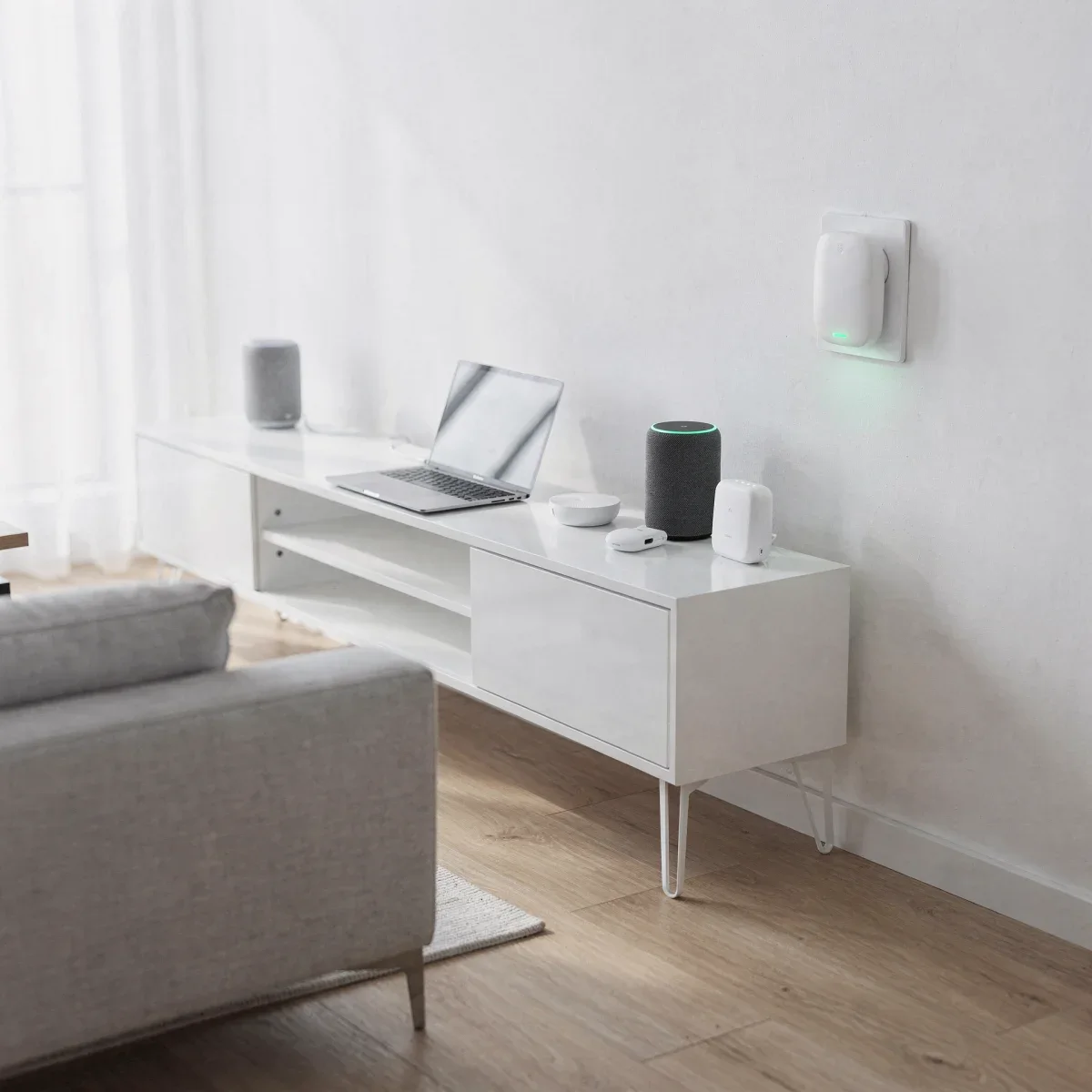
Plug-in extenders connect directly to an electrical outlet, keeping cables off the floor and out of sight. They work well for hallways, stairwells, and compact apartments. Desktop extenders look like traditional routers, equipped with larger external antennas and multiple Ethernet ports. While they take up shelf or desk space, they generally offer superior range and heat dissipation.
Extender vs. Mesh System: Which One Do You Need?
A common dilemma for homeowners is deciding between a standalone extender and a complete mesh Wi-Fi system (such as eero, Google Nest Wifi, or Netgear Orbi). While both expand wireless coverage, their architectures differ significantly.
| Feature | Standalone Wi-Fi Extender | Whole-Home Mesh System |
|---|---|---|
| Average Cost | $30 – $120 | $150 – $500+ |
| Network Name (SSID) | Often creates a separate network name (e.g., Network_EXT) | Single seamless network name throughout the entire home |
| Roaming Hand-off | Manual switching or delayed hand-off as you walk room-to-room | Automatic, seamless hand-off to the closest node |
| Best Suited For | Fixing 1–2 specific dead zones in small-to-medium homes | Large homes (2,500+ sq ft), multi-story layouts, or dense walls |
If you live in an apartment, townhouse, or modest ranch-style home and just need your signal to reach the home office or garage workbench, a standalone booster is the most cost-effective fix. If your house has multiple floors, concrete framing, or more than 3,000 square feet, a multi-node mesh network is usually worth the extra investment.
Optimal Placement and Setup Tips
The biggest reason people return wireless boosters is poor positioning. Placing the unit directly in the dead zone will not work because the extender cannot amplify a signal it cannot receive in the first place.
Instead, follow the halfway rule: plug the device roughly halfway between your primary router and the dead zone. The location should still receive at least two to three bars of solid, reliable signal from your main router. Most modern models from brands like TP-Link, Netgear, and Linksys feature built-in LED signal indicators or companion mobile apps that tell you whether the spot is too close, too far, or just right.
Keep the unit out in the open rather than hiding it behind furniture, heavy curtains, or inside entertainment centers. Avoid plugging it directly next to large reflective mirrors or dense kitchen appliances like microwaves and refrigerators, which actively scatter radio frequencies.
Quick Takeaways
- Match Standards: Choose an extender that supports the same generation (Wi-Fi 5, 6, or 6E) as your existing main router to prevent bottlenecks.
- Prioritize Bands: Pick at least a dual-band model; opt for tri-band if you have a busy household with high-bandwidth streaming demands.
- Position Halfway: Place the hardware at the midpoint between your router and the dead spot, not inside the dead zone itself.
Frequently Asked Questions
Will a Wi-Fi extender make my internet speed faster?
No. An extender only increases the physical range of your signal. It cannot deliver speeds faster than the maximum broadband plan you purchase from your internet service provider or what your main router broadcasts.
Does a Wi-Fi extender create a new network name?
Many basic extenders create a secondary network with an added "_EXT" suffix. However, models with roaming technology or OneMesh/EasyMesh compatibility can mirror your primary network name and password for seamless roaming.
Can I use any brand of extender with my current router?
Yes. Universal Wi-Fi standards allow almost any brand of extender to connect to standard gateway routers supplied by AT&T, Comcast Xfinity, Spectrum, Verizon, or retail brands like Asus and Netgear.
Final Thoughts
Fixing dead spots around your living space does not have to be an expensive or complicated project. By identifying your router's wireless generation, picking a dual-band or tri-band unit with an Ethernet port, and following proper placement guidelines, you can enjoy stable connectivity in every corner of your home. Check out our latest smart home guides and networking reviews for more straightforward tips on keeping your devices running smoothly.