
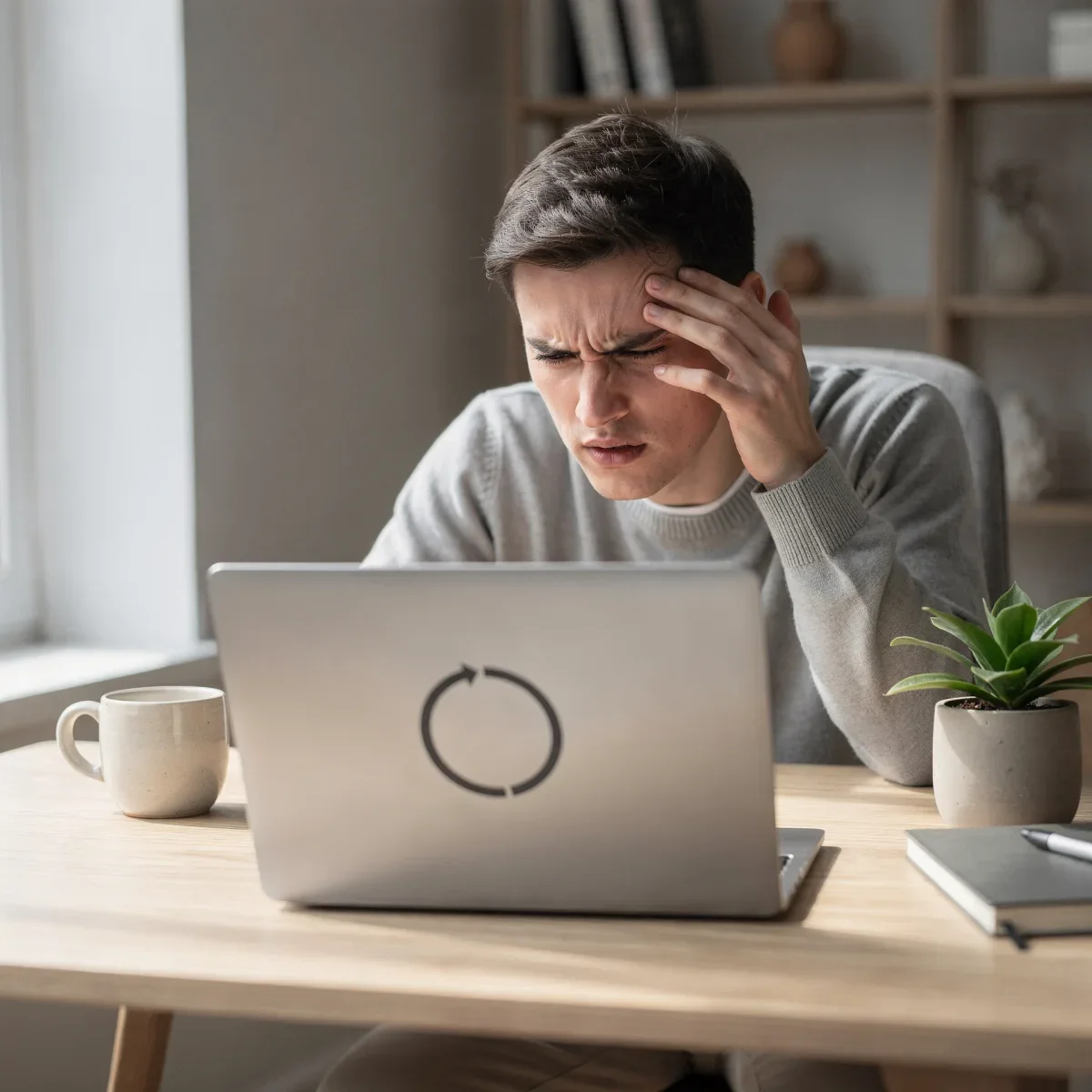
When your laptop running slow begins testing your patience, even opening a simple web browser can feel like an eternity. Whether you are dealing with frozen tabs or sluggish boot times, you do not need to rush to Best Buy for a replacement right away. Most performance slowdowns stem from manageable software clutter and simple maintenance issues you can resolve in minutes.
Advertisements
Manage Startup Programs and Background Tasks
One of the most common reasons a computer drags is having too many programs launching the moment you boot up. Apps like Spotify, Discord, and cloud backup tools often set themselves to open automatically, eating up vital memory before you even start working.
On Windows, press Ctrl + Shift + Esc to open Task Manager, switch to the Startup apps tab, and disable items you rarely need. Mac users can open System Settings > General > Login Items and remove non-essential startup software. Keeping your startup tray lean immediately frees up system resources.
Free Up Storage Space and Clear Temporary Files
Solid-state drives (SSDs) need breathing room to operate efficiently. When your main storage drive reaches more than 80% capacity, read and write speeds drop noticeably, leading to system stuttering.
- Run Disk Cleanup: On Windows, use built-in tools like Storage Sense to purge temporary cache files and old update installers.
- Offload Media: Move heavy video files, photo libraries, and completed projects to an external drive or cloud storage.
- Uninstall Unused Software: Sort your installed applications by size and remove programs or games you haven't touched in months.
Keep Your Operating System and Drivers Updated
Running outdated software often leads to memory leaks and compatibility bugs that drain system power. Hardware manufacturers frequently release driver patches that optimize how your processor and graphics card interact with your operating system.
Head to your system settings to install pending Windows Updates or macOS updates. If you use a laptop with dedicated graphics from NVIDIA or AMD, open their respective companion apps to ensure you have the latest stable display drivers installed.
Prevent Overheating and Thermal Throttling
Modern laptops automatically reduce their processor speeds to protect internal components when temperatures get too high. If your laptop feels hot to the touch or the fans sound like a jet engine, thermal throttling is likely holding back your performance.
| Issue | Primary Cause | Quick Solution |
|---|---|---|
| Loud fan noise | Dust buildup in air vents | Clean vents using a can of compressed air |
| Sluggish multitasking | Insufficient RAM | Close unused browser tabs or upgrade memory |
| High disk usage | Bloatware or background scans | Run Windows Defender scan and remove bloatware |
Quick Takeaways
- Disable unnecessary startup applications to dramatically cut boot times and reclaim RAM.
- Keep at least 20% of your primary storage drive free to maintain optimal SSD read/write speeds.
- Clean air vents regularly to avoid thermal throttling caused by excessive heat buildup.
Frequently Asked Questions
Does restarting my laptop really make it faster?
Yes. Restarting your laptop clears temporary cache data, closes hidden memory leaks from rogue apps, and resets background system processes, providing an instant performance refresh.
How much storage space should I keep free?
Aim to keep at least 15% to 20% of your primary drive empty. Solid-state drives require free space to distribute data evenly and maintain peak performance.
Can a virus cause my laptop to run slow?
Yes. Malware and adware frequently run covert processes in the background that consume CPU and network resources. Run a full scan using Windows Defender or Malwarebytes to check.
Next Steps for Better Performance
Dealing with a laptop running slow does not always require purchasing expensive hardware. By routinely clearing unnecessary background processes, maintaining ample free storage, and keeping vents clean, you can keep your machine running smoothly for years. Check out our guide on essential laptop maintenance habits to protect your tech investment.