
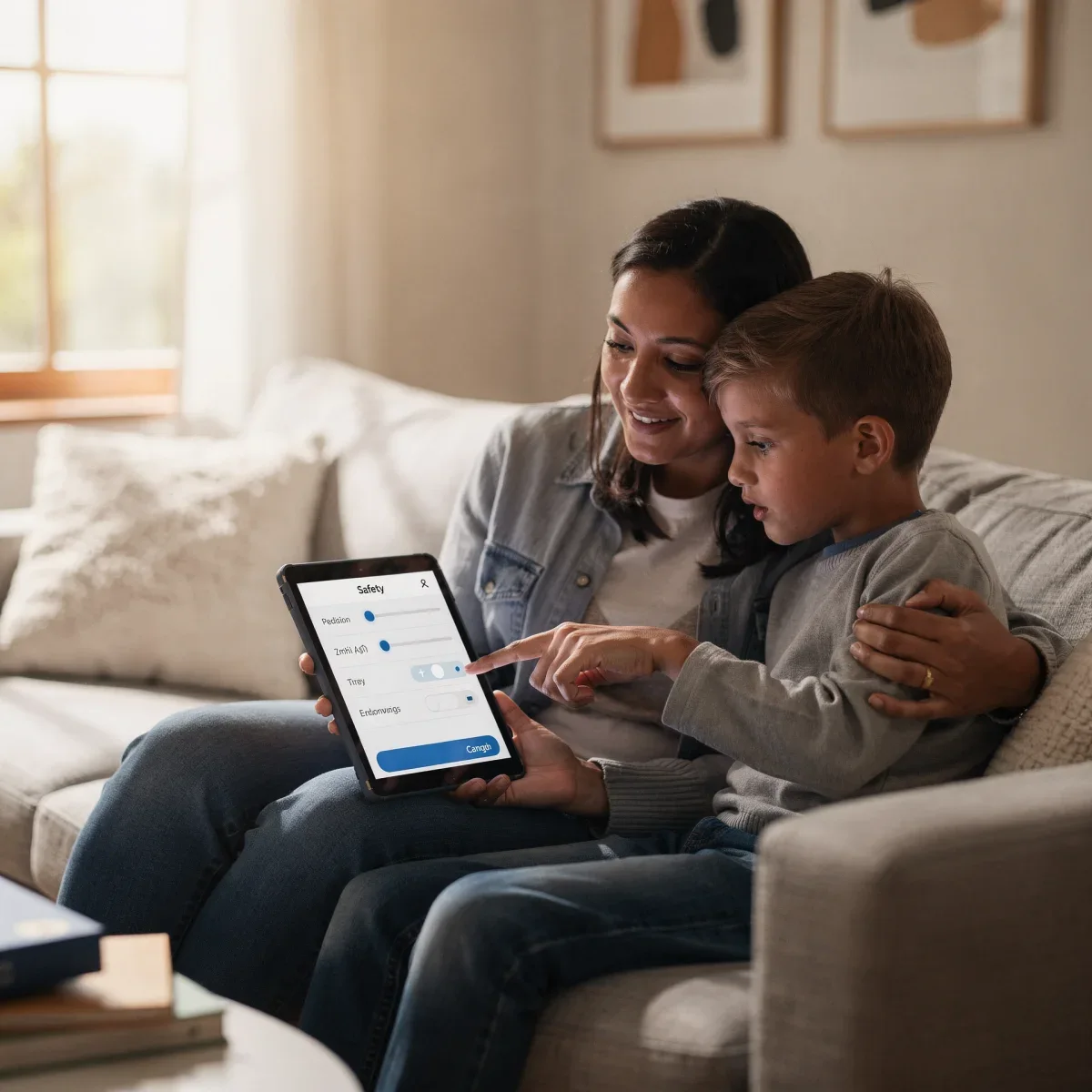
Handing a smartphone or tablet to your child opens up a world of learning, entertainment, and connection. However, it also opens the door to mature content, accidental purchases, and endless screen time. Learning how to set up parental controls on your family's devices is the best way to create a secure, age-appropriate digital playground without hovering over their shoulders all day.
Advertisements
Whether your household uses iPhones, iPads, Android devices, or Amazon Fire tablets, modern operating systems offer robust, built-in tools. Here is how to configure them step by step.
How to Set Up Parental Controls on iPhone and iPad (Apple Screen Time)
Apple integrates its safety features directly into iOS and iPadOS through Screen Time. You can manage these settings directly on your child's device or remotely using Family Sharing from your own iPhone.
- Enable Screen Time: Open Settings > Screen Time. Tap Turn On Screen Time and select This is My Child's [Device].
- Create a Passcode: Set a unique four-digit Screen Time Passcode. Make sure it is different from the device unlock code so your child cannot alter the settings.
- Set Downtime and App Limits: Tap Downtime to schedule hours (such as bedtime) where only phone calls and pre-approved apps work. Use App Limits to set daily timers for specific categories like games or social media.
- Restrict Content & Privacy: Tap Content & Privacy Restrictions and toggle it on. Under Store, Web, Siri & Game Center Content, you can restrict web browsing to kid-safe sites, block explicit music and podcasts, and prevent unauthorized app downloads or in-app purchases.
How to Set Up Parental Controls on Android Phones and Tablets
Android manages safety through Google Family Link. This free app allows parents to set ground rules, track screen time, and approve app installs from their own Android or iOS device.
- Set Up Family Link: Download the Google Family Link app on your phone. Follow the on-screen prompts to link your child's Google Account to your family group.
- Manage Google Play Purchases: In Family Link, select your child's profile, go to Controls > Google Play, and require parental approval for all downloads and in-app purchases.
- Establish Screen Time Limits: Tap Daily Limit to cap overall phone usage on weekdays and weekends. You can also configure a Bedtime schedule that locks the phone automatically overnight.
- Filter Web Browsing: Go to Controls > Google Chrome and choose Try to block explicit sites or approve a curated list of allowed websites.
Configuring Amazon Fire Tablets for Kids
Amazon Fire tablets bought at retailers like Target or Best Buy are widely popular for younger kids thanks to Amazon Kids (formerly FreeTime). If you have an Amazon Fire Kids edition, these controls are active out of the box, but standard Fire tablets can be configured just as easily.
Open Settings > Profiles & Family Library and add a Child Profile. From the Amazon Parent Dashboard, you can require educational goals—such as 30 minutes of reading—before entertainment apps unlock. You can also set a hard turn-off time so the tablet turns off automatically when bedtime arrives.
Comparison of Built-In Parental Control Tools
| Platform | Primary Tool | Remote Management | App Approval Required |
|---|---|---|---|
| Apple (iOS/iPadOS) | Screen Time & Family Sharing | Yes (via Apple device) | Yes (Ask to Buy) |
| Android | Google Family Link | Yes (Android & iOS) | Yes |
| Amazon Fire | Amazon Kids / Parent Dashboard | Yes (via Web & App) | Yes |
Quick Takeaways
- Use built-in tools first: Apple Screen Time, Google Family Link, and Amazon Kids provide comprehensive, free protection without needing third-party subscriptions.
- Protect your passcodes: Always keep your parent passcodes and account passwords private to prevent kids from bypassing restrictions.
- Pair tech with conversation: Software filters work best when paired with ongoing talks about digital citizenship and online safety.
Frequently Asked Questions
Can kids bypass parental control settings?
Kids often find workarounds by changing system clocks or watching videos via web browsers. Keep the operating system updated, lock down browser settings, and use a dedicated passcode unknown to your child.
Are third-party parental control apps worth it?
Apps like Bark or Qustodio offer advanced social media monitoring and text scanning. While helpful for teens, the built-in tools on iOS and Android are sufficient for most families.
How do I stop unauthorized in-app purchases?
On iOS, disable In-App Purchases under Content & Privacy Restrictions. On Android, require authentication for all purchases through the Google Play Store account settings menu.
Taking an hour to set up parental controls on every phone and tablet in your home delivers lasting peace of mind. Check your settings every few months as your child grows, and check out our guides on home Wi-Fi security for total household protection.